How to receive part of a purchase order and update stock in Shopify
Suppliers often send an order in parts. You want the boxes that arrived counted in Shopify today, and the rest of the order kept open until the last one shows up. This guide receives part of a purchase order in Reordo, so Shopify stock goes up by exactly what arrived and the order stays open for the remainder.
Shopify's built-in purchase orders handle partial deliveries with inventory transfers and shipments, as described in Shopify's help center. In Reordo you receive from the order page itself.
Tap or click a screenshot to open it full size.
Step 1: Open the order that is waiting for stock
Choose Purchase orders and open an order whose status is Ordered or Partly received. The Items table shows, for each product, how many were ordered, how many are received, how many are outstanding, the unit cost and a Receive now box.
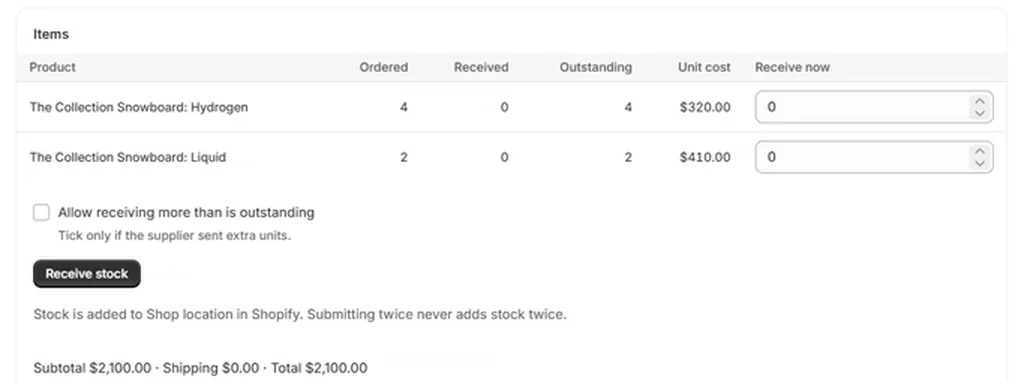
Step 2: Type what arrived
In Receive now, type the quantity that arrived for each product. In this example 2 of the 4 Hydrogen boards came in, so that box shows 2 and the Liquid board stays at 0. Leave anything that did not arrive at 0.
Reordo will not let you receive more than is outstanding unless you tick Allow receiving more than is outstanding. The box carries a reminder: tick it only if the supplier sent extra units.
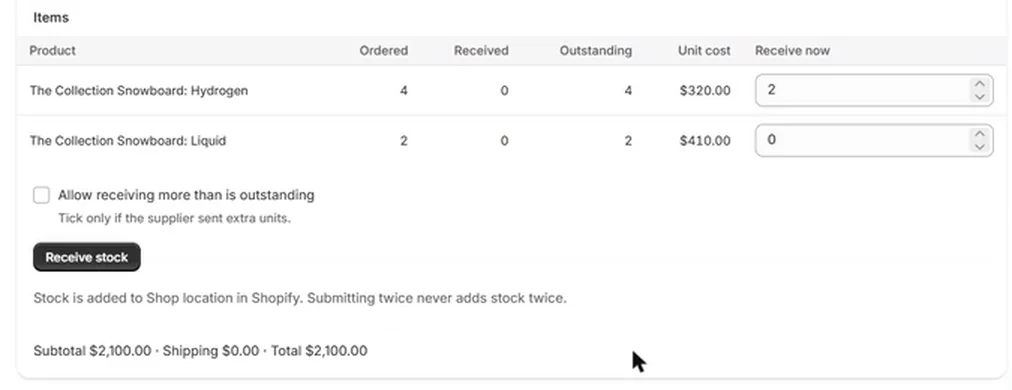
Step 3: Choose Receive stock
Choose Receive stock. Reordo adds the quantity to Shopify at the order's delivery location and confirms it, for example "Received 2 units. Shopify stock updated at Shop location." The badge changes to Partly received, and the Received and Outstanding columns update.
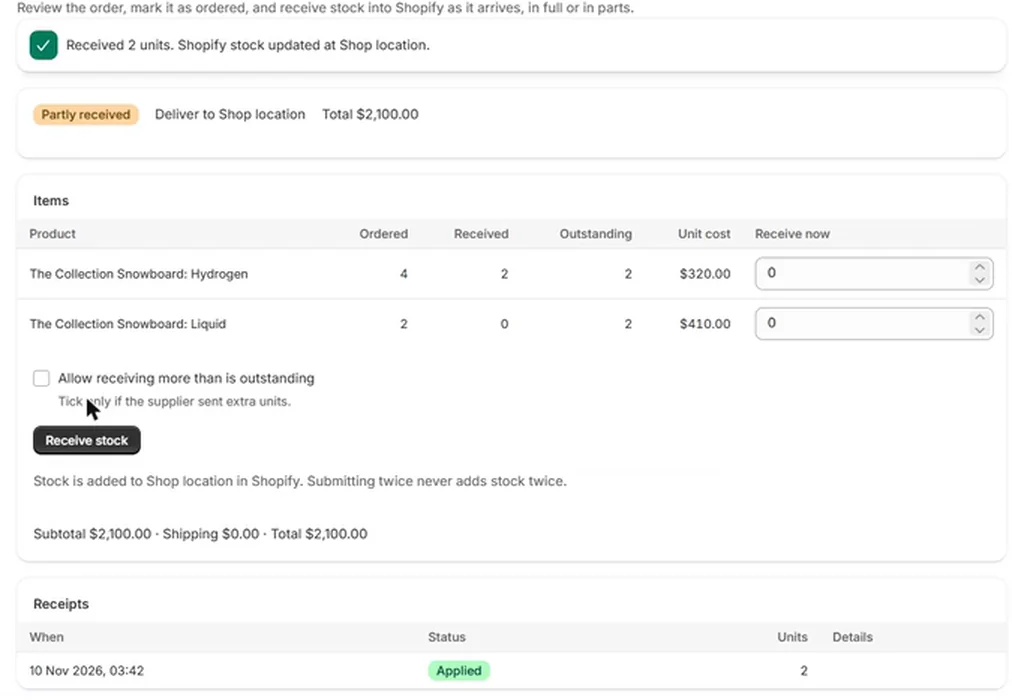
Step 4: Check the receipt
The Receipts table at the bottom of the order keeps one row for every time you received stock: the date and time, the status, and the number of units. Applied means Shopify accepted the stock. These rows are your record of what came in and when.

Step 5: Receive the rest when it arrives
When the next delivery comes, open the same order and repeat the steps. A line that is fully received shows Done instead of a box. When every line has been received in full, the status changes to Received on its own.
If a product is not yet stocked at the delivery location, the line says so and notes that receiving adds it there. Receiving then puts it there.
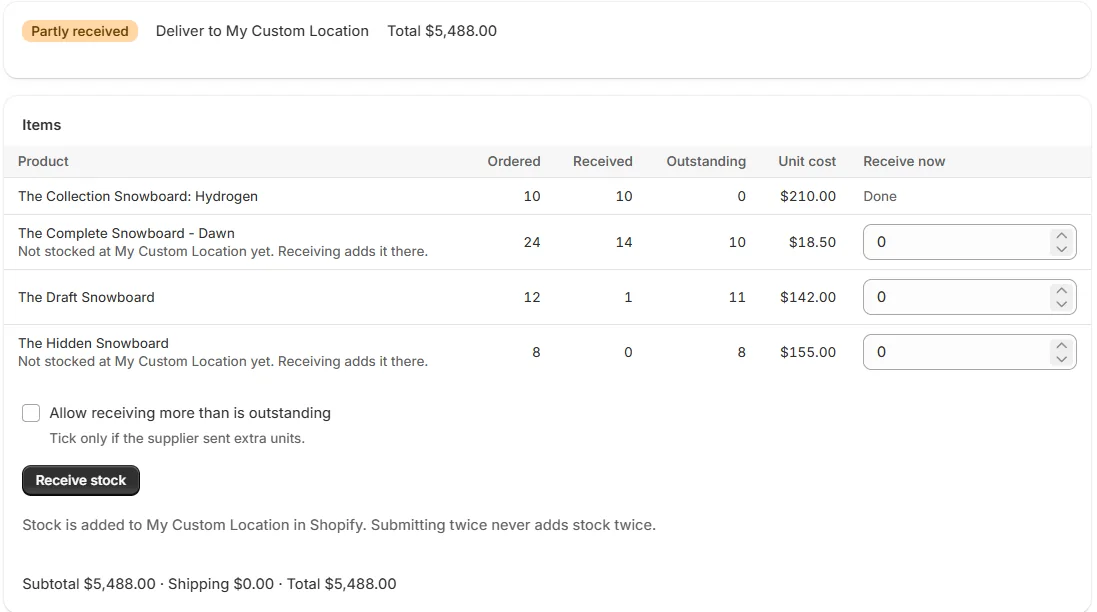
What changes in Shopify
The available quantity of each received product goes up at the delivery location by the number you entered. You can see the change in the product's inventory history in Shopify.
Reordo's Settings page has a checkbox: "Update the Shopify unit cost to the PO cost when stock is received". It is on by default. When it is on, receiving also sets the product's unit cost in Shopify to the cost on the order. This applies only when the order's currency is the same as your store's currency. Untick it if you want Shopify costs left alone.
Why a double click cannot receive twice
Every receive form carries its own one-time key. If you click twice, or the page reloads and you submit again, Reordo recognises the key and returns the first receipt instead of adding stock again. The page says so under the button: submitting twice never adds stock twice.
If Shopify does not accept the update, the receipt shows Failed with a Retry button. Retry reuses the same receipt, so a retry cannot double the stock either.
Short, damaged or extra deliveries
Short delivery: leave the missing quantity outstanding and receive it when it comes. The order stays Partly received. A partly received order cannot be cancelled in the current version, so it stays open until the lines are received.
Extra units: tick Allow receiving more than is outstanding and enter the real count.
Damaged or wrong goods: Reordo records stock coming in, not stock going out. Correct the quantity with an inventory adjustment in Shopify, or with a stocktake on the Starter plan.
A worked example
An order has two lines: 4 Hydrogen boards and 2 Liquid boards. The first delivery brings 2 Hydrogen boards. You type 2 in Receive now for Hydrogen and choose Receive stock. Shopify's available quantity for Hydrogen at the delivery location goes up by 2. The order shows Partly received, with Hydrogen at 2 received and 2 outstanding, and Liquid at 0 received and 2 outstanding.
The second delivery brings the other 2 Hydrogen boards and both Liquid boards. You type 2 and 2 and choose Receive stock. Shopify stock goes up by 4 in total across the two receipts, the Receipts table has a second row, and the order moves to Received because every line is complete.
A routine for receiving day
- Check the packing slip against the order before you type anything.
- Receive one delivery at a time. One receipt per box or pallet that arrives keeps the Receipts table easy to read.
- Count first, then type. Reordo adds exactly the numbers you enter, so a typing slip becomes a stock error.
- Leave the quantity of anything that did not arrive outstanding. Do not receive items you are only expecting.
- Check the confirmation message after you choose Receive stock before you move on to the next order.
Troubleshooting
It says I cannot receive more than is outstanding
You typed a number larger than the Outstanding column. Lower it, or tick Allow receiving more than is outstanding if the supplier really sent extra.
It asks me to enter a quantity for at least one line
Every Receive now box is 0. Type a quantity above 0 for at least one product.
The receipt shows Failed
Shopify did not accept the stock update, for example because of a timeout. Choose Retry on the receipt. It reuses the same receipt, so the stock cannot be added twice.
I do not see a Receive stock button
Only orders that are Ordered or Partly received can receive stock. Mark a draft as ordered first. Received and cancelled orders are closed.
The stock did not change for one product
Open the product in Shopify and check the delivery location's available quantity. Receiving changes the location named on the order, not other locations.
Frequently asked questions
Can I receive stock without a purchase order?
Reordo receives against purchase orders. To correct stock without an order, use a stocktake on the Starter plan or an inventory adjustment in Shopify.
Can I undo a receipt?
Reordo has no undo for a receipt. Correct a mistake with an inventory adjustment in Shopify, or with a stocktake on Starter.
How many times can I receive against one order?
As many times as you need, until every line is received in full.
Does receiving change my product cost in Shopify?
Only if the setting "Update the Shopify unit cost to the PO cost when stock is received" is on, which it is by default, and the order's currency matches your store's.
Which plan do I need?
Receiving is included in every plan, including Free.