How to save supplier cost, minimum order and pack size in Shopify
A quick note on the words. On a Shopify store, "minimum order quantity" often means the least a customer can buy. This guide is about the other kind: the least your supplier will sell you, and the pack size they sell in. Saving both next to the supplier's cost means your purchase orders and reorder suggestions match how you really buy.
Shopify keeps one cost per item on each product. If you buy the same product from two suppliers at different prices, Reordo keeps a separate cost, minimum order and pack size for each supplier.
Tap or click a screenshot to open it full size.
Step 1: Open the supplier
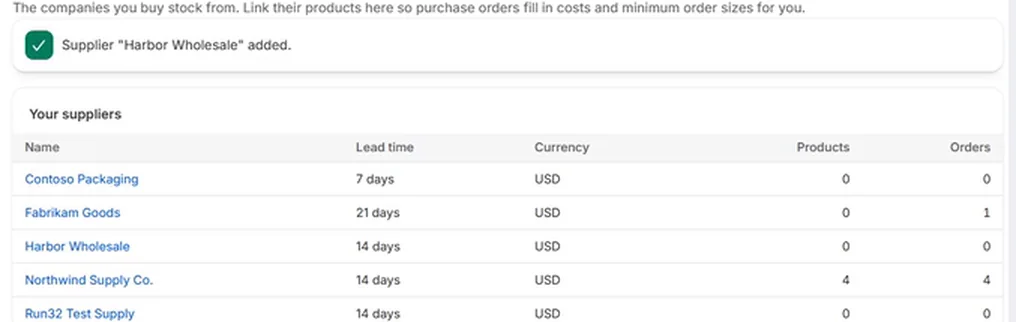
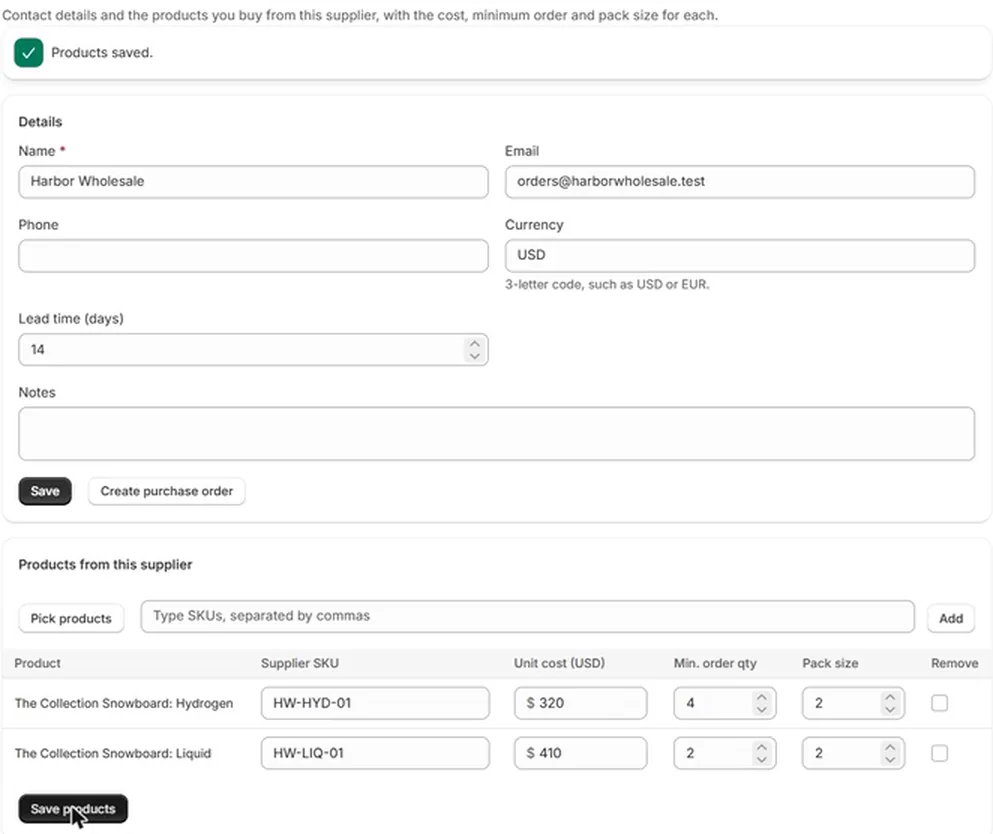
Choose Suppliers in the Reordo menu and click the supplier's name. The page has the supplier's details at the top, including currency and lead time, and Products from this supplier below. Lead time starts at 14 days and is used by reorder suggestions.
Step 2: Pick the products you buy from them
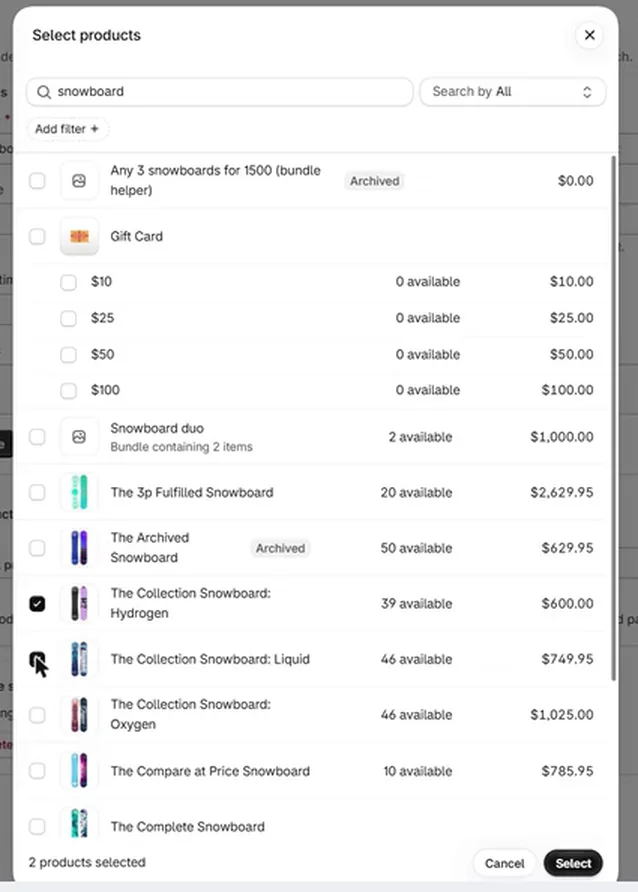
Choose Pick products, search for the products or variants, tick them and choose Select. Or type SKUs separated by commas in the box beside it and choose Add. Linking the same product to a second supplier is fine; each supplier keeps its own row.
Step 3: Fill in the four fields
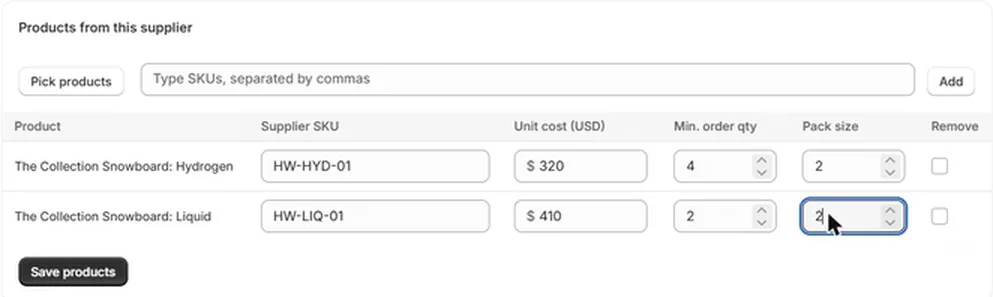
Each linked product has a row with four boxes.
- Supplier SKU: the code the supplier uses. It appears first on the printed order, so the supplier can find the item.
- Unit cost: what you pay per unit, in the supplier's currency.
- Min. order qty: the least the supplier will sell you of this product. It starts at 1.
- Pack size: the unit the supplier sells in, such as a case of 6. It starts at 1.
Step 4: Save the products
Choose Save products. Reordo confirms with "Products saved." To remove a link, tick Remove on its row and save again.
Step 5: See the costs appear on a new purchase order
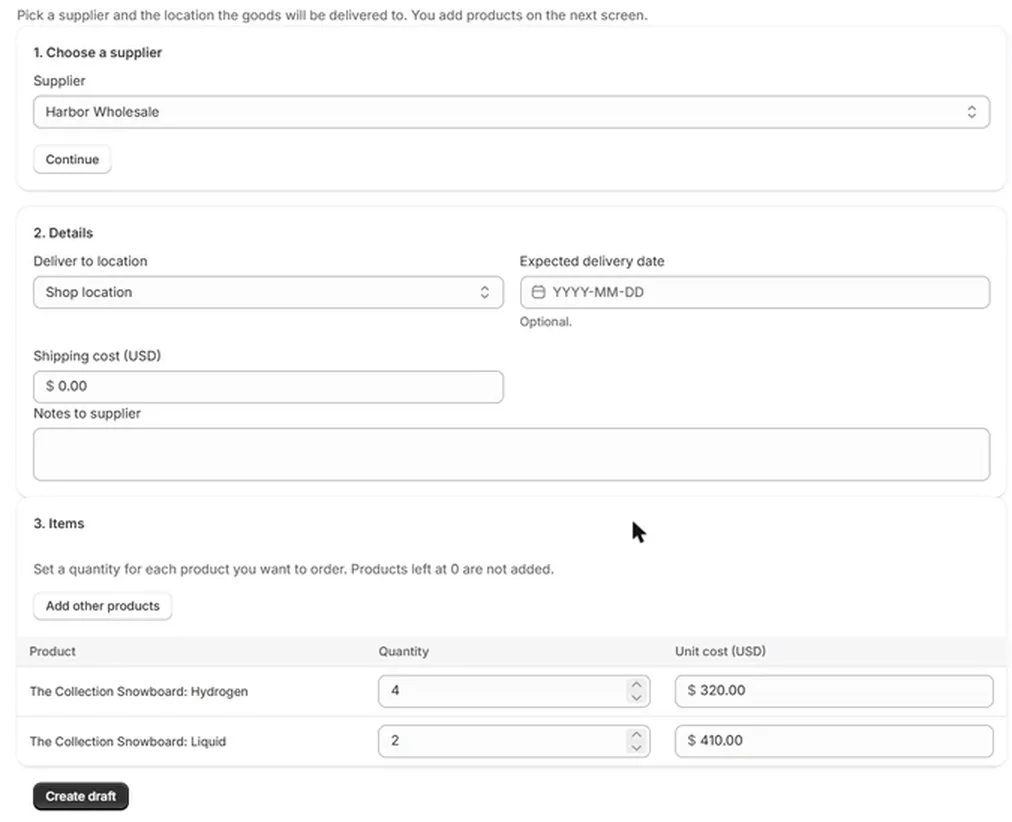
Create a purchase order for this supplier. The items list shows the linked products, and each unit cost box is already filled in from the supplier. Change a cost on the order if this delivery is priced differently; the saved supplier cost stays as it was.
Step 6: Send the order with the supplier's SKU
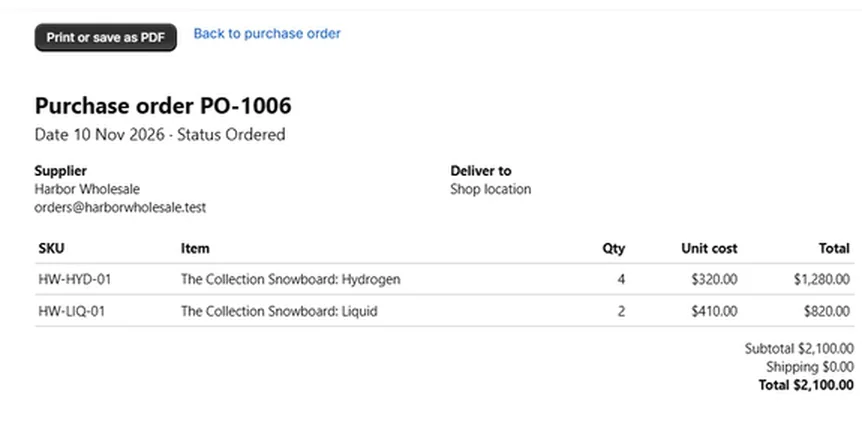
On the printed order and in the email text, the supplier's SKU comes first and your own SKU follows when they differ. The supplier looks up their code, and you keep yours for your own records. The printing and emailing guide shows the print page.
Where minimum order quantity and pack size are used
On the Pro plan, reorder suggestions use both. When Reordo works out how much to order, it raises the quantity to at least the minimum and then rounds it up to a multiple of the pack size. For example, if the sales say you need 7, the minimum is 12 and the pack size is 6, the suggestion is 12. If you need 13, the suggestion is 18. The reorder guide has the full formula.
On a purchase order you build by hand, Reordo does not stop you from typing a quantity below the minimum or outside the pack size. The saved values are there as your reference and for suggestions.
Minimum order quantity and pack size are different things
The minimum order quantity is the least the supplier will sell you of a product. The pack size is the unit they sell in. A product can have a minimum of 10 and a pack size of 1, so any quantity from 10 up works. Another can have a minimum of 12 and a pack size of 6, so only 12, 18, 24 and so on work. Saving both lets Reordo round a suggestion to something the supplier will actually accept.
Reading the saved terms
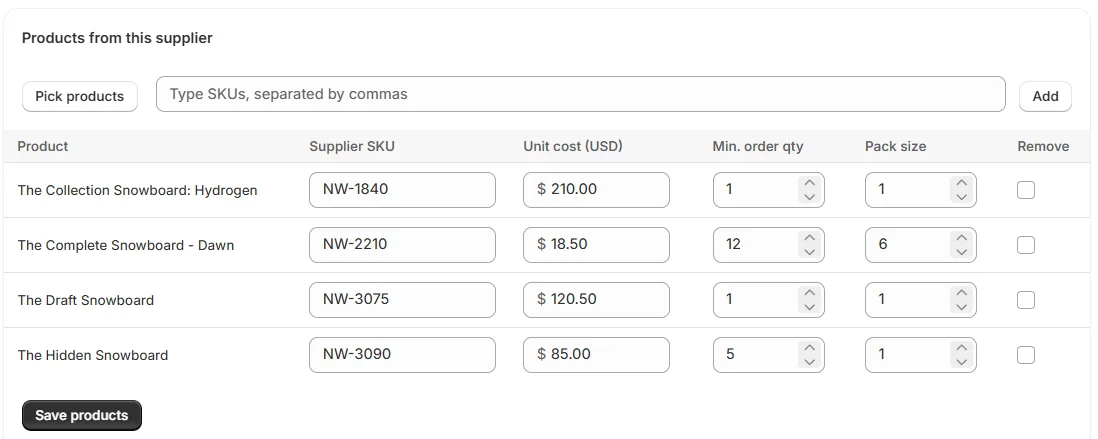
In the supplier page screenshot in step 3, the Dawn snowboard costs $18.50, has a minimum order of 12 and a pack size of 6. Valid quantities start at 12 and go up in sixes: 12, 18, 24 and so on. The Hidden Snowboard has a minimum of 5 and a pack size of 1, so 5 or any higher number works.
One product, two suppliers
Link the product under both suppliers and give each its own supplier SKU, cost, minimum and pack size. When you create an order, you choose the supplier first, and the cost on the order comes from that supplier's row. The other supplier's terms stay untouched.
Keeping costs up to date
Supplier prices change. When a new price list arrives, open the supplier, update the unit cost and choose Save products. New orders use the new cost. Orders you already created keep the cost they were made with, so your history stays accurate.
Bring many costs in at once
If your costs live in a spreadsheet, the CSV import on the Starter plan creates suppliers and links products with their costs from a file. The import guide covers it.
Troubleshooting
The cost on a new order is 0.00
No cost is saved for that product and supplier. Reordo falls back to the cost recorded in Shopify only when its currency matches the supplier's. Save the cost on the supplier page or type it on the order.
My cost is in the wrong currency
Costs are saved in the supplier's currency, shown in the column heading. Change the currency on the supplier details if the supplier invoices in another one.
I cannot find a product in the picker
Check that it exists in Shopify. You can also type its SKU in the box beside Pick products.
I cannot delete a supplier
A supplier that has purchase orders cannot be deleted. Remove its product links instead, or keep it for your records.
The supplier SKU does not show on the order
Save the supplier SKU on the supplier page first. Orders show your own SKU when no supplier SKU is saved.
Frequently asked questions
Can one product have two suppliers?
Yes. Link it to both. Each supplier has its own cost, minimum order quantity and pack size for it.
Does Reordo block quantities below the minimum?
No, not on orders you build by hand. Suggestions on the Pro plan respect the minimum and the pack size.
Does a supplier cost change the cost in Shopify?
Not by itself. Reordo can update the Shopify unit cost when you receive stock, which is a setting that is on by default. The receiving guide explains it.
Is this the same as a minimum order quantity for customers?
No. This is the supplier side only. Reordo does not set purchase limits for your customers.
Which plan do I need?
Saving supplier costs, minimums and pack sizes works on every plan, including Free.