How to create a purchase order in Shopify
A purchase order is the written request you send a supplier: what you want, how many, at what price, and where it should be delivered. This guide creates one in Reordo, a Shopify app by Tidy Button, starting from a store with no suppliers and ending with an order marked as ordered. The screenshots come from a development store with sample data.
Shopify's admin now has purchase orders of its own, and for many shops that is enough. Reordo suits shops that want supplier costs saved per product, receiving from the order page, a printable order, and on paid plans stocktakes and reorder suggestions in the same app.
Tap or click a screenshot to open it full size.
Step 1: Add the supplier
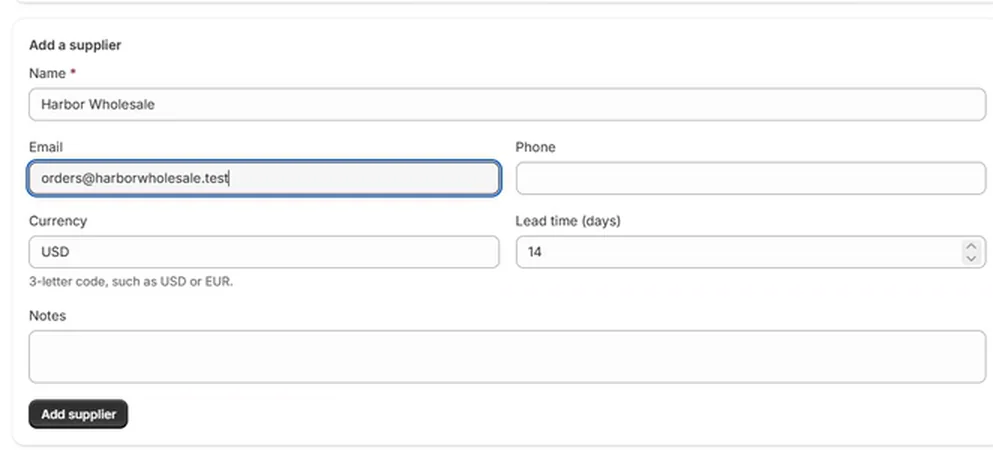
Open Reordo from your Shopify admin and choose Suppliers in the app menu. Under Add a supplier, enter a name (required). Email, phone, currency and lead time are optional but useful. The currency is a three-letter code such as USD or EUR, and the lead time is in days and starts at 14.
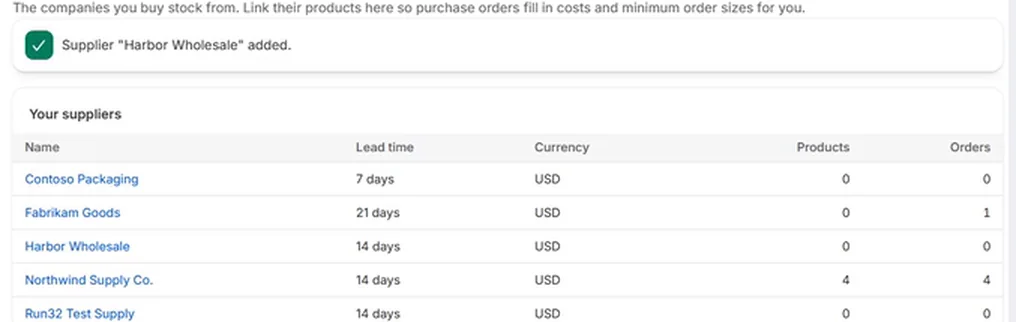
Choose Add supplier. A confirmation appears and the supplier joins the list with its lead time, currency and the number of linked products and orders.
Step 2: Link the products you buy from this supplier
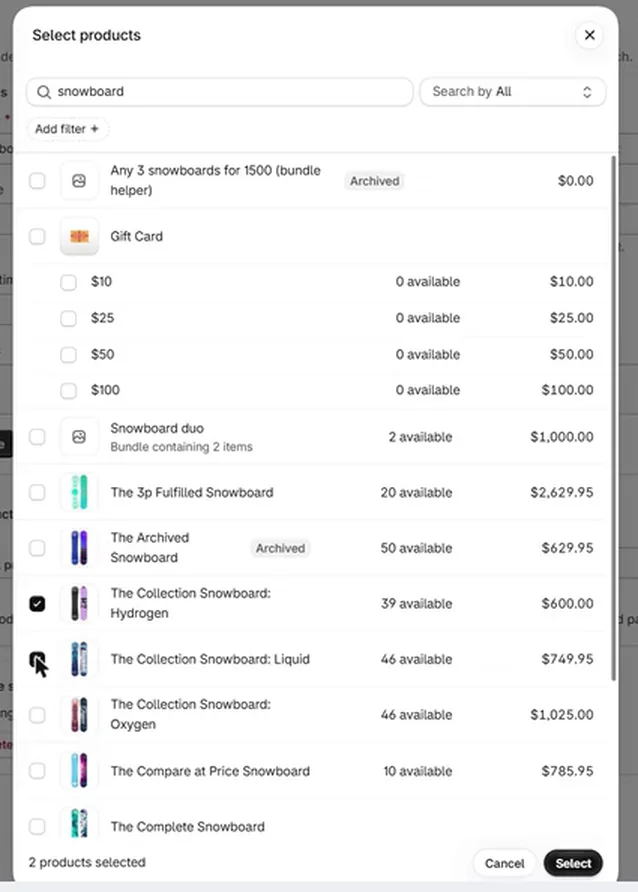
Open the supplier. Under Products from this supplier, choose Pick products to open Shopify's product picker, tick the products and choose Select. If you prefer typing, enter SKUs separated by commas and choose Add.
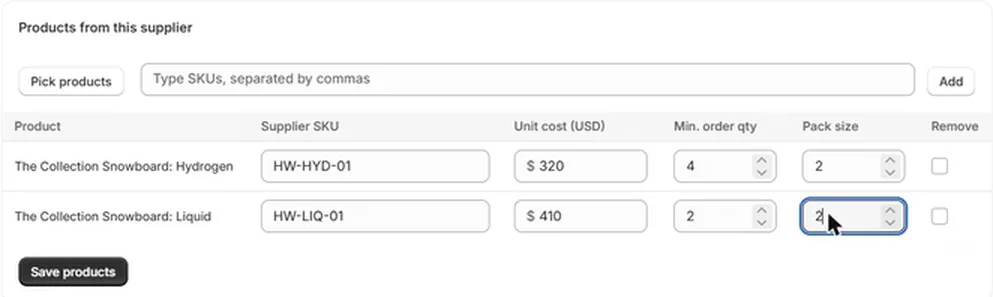
Each linked product gets a row for the supplier's own SKU, your unit cost, a minimum order quantity and a pack size. Fill in what you know and choose Save products. Purchase orders for this supplier then start with these costs. The supplier cost, minimum order and pack size guide explains each field.
Step 3: Start the purchase order
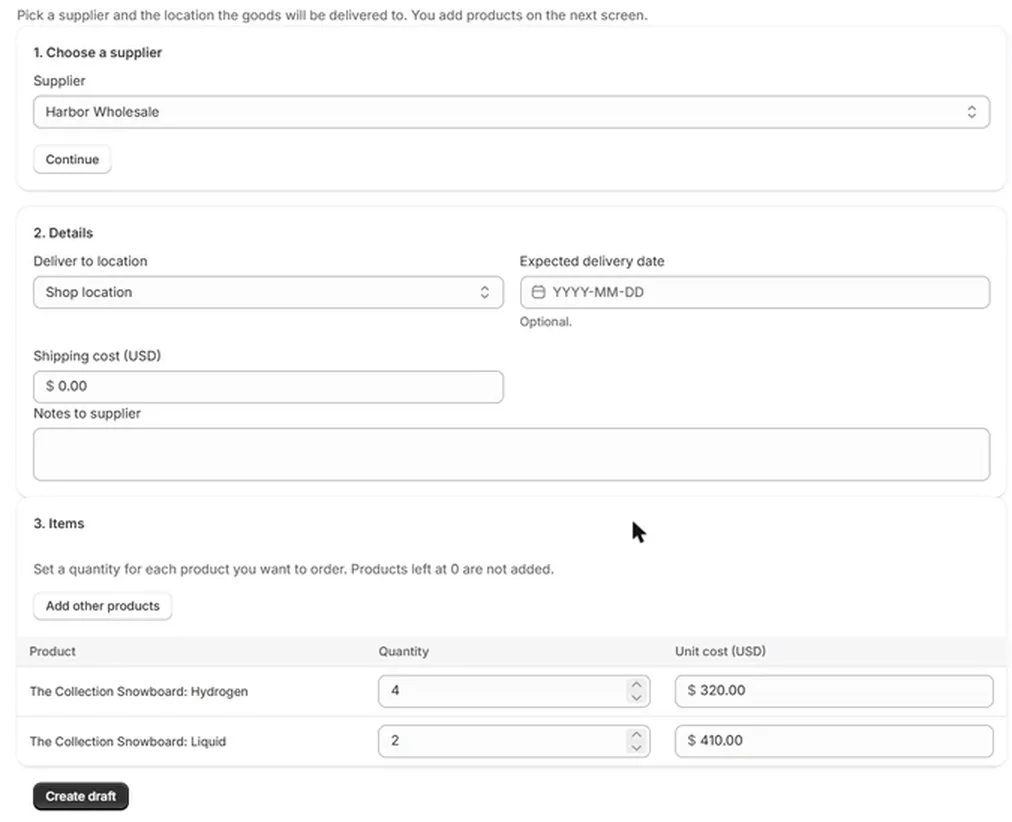
Choose Purchase orders, then Create purchase order. You can also start from the supplier page, which has its own Create purchase order button. In part 1, pick the supplier and choose Continue.
Part 2 asks where the goods will be delivered. Pick the location, add an expected delivery date if you have one, and enter the shipping cost and any notes for the supplier. Part 3 lists the supplier's linked products, each with a quantity box and a unit cost already filled in from the supplier. Type a quantity for every product you want. Products left at 0 are not added.
Need something that is not linked to this supplier? Choose Add other products. For those, a blank unit cost uses the cost saved in Shopify.
Step 4: Create the draft and check the totals
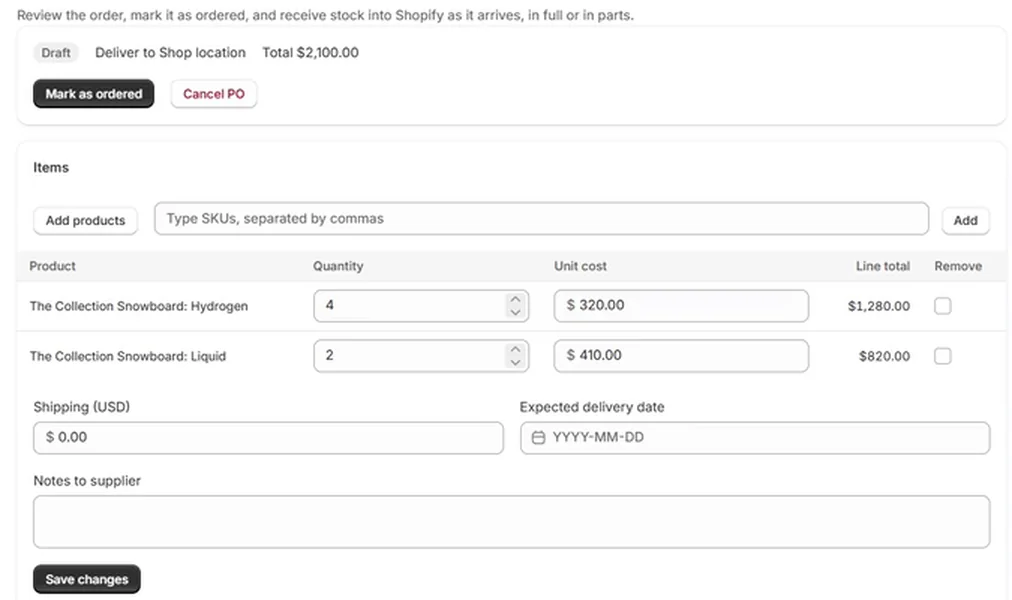
Choose Create draft. Reordo saves the order with the next number in your sequence, such as PO-1006, and opens it with a Draft badge, the delivery location and the total.
A draft can still be changed. Edit quantities and unit costs, tick Remove on a line to drop it, add more products, and update shipping, the expected delivery date or the notes. Each line shows its line total. Choose Save changes after editing. If you decide against the order, Cancel PO cancels it without touching Shopify stock.
Step 5: Send it, then mark it as ordered
Send the order to your supplier first. Reordo gives you a print page and a ready-made email, and the printing and emailing guide shows both.
When the order is placed, choose Mark as ordered. The status changes to Ordered, and Reordo confirms that you can open the order and choose Receive stock when the goods arrive. From this point the lines are fixed and the page becomes a receiving table. Receiving part of an order covers that stage.

Step 6: Find your orders later
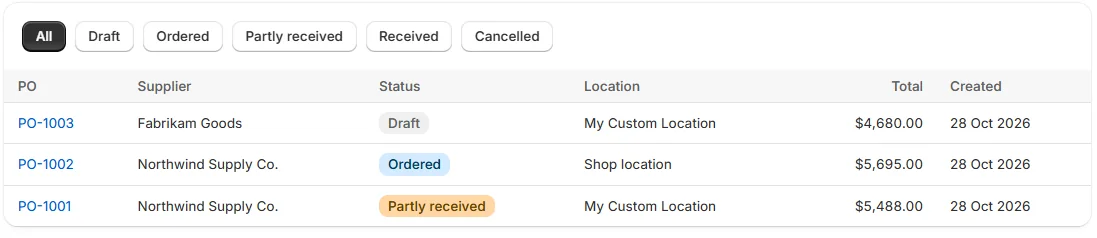
Purchase orders lists every order with its supplier, status, delivery location, total and creation date. Use the buttons above the table to filter by Draft, Ordered, Partly received, Received or Cancelled, or choose All. Open an order by clicking its number.
What a purchase order does and does not do in Reordo
- Creating an order, or marking it as ordered, does not change your Shopify stock. Stock changes only when you receive items against the order.
- Reordo does not send email for you. It prepares the email text for you to copy or open in your own email app.
- On the Free plan each new order counts toward the 10 a month. The Plans page shows how many you have used this month.
- Shopify's built-in purchase orders record the supplier, products, quantities, costs and payment terms, and Shopify's help center explains that you receive them through an inventory transfer created from the order. In Reordo you receive straight from the order page.
A short checklist before you mark an order as ordered
Open the draft and read it the way your supplier will. A minute here is cheaper than fixing a wrong order later.
- Is every product and quantity right, and does any quantity fall below the supplier's minimum order?
- Are the unit costs the ones on the supplier's latest price list?
- Is the delivery location the place the goods will actually arrive?
- Have you added the shipping cost and an expected delivery date, if you know them?
- Does the notes box say what the supplier needs to know, such as an account number or delivery instructions?
- Have you sent the order, by email or by print?
If you spot a mistake after marking the order as ordered
Once an order is marked as ordered, its lines cannot be edited. While it is still Ordered, you can choose Duplicate to make a copy, correct the copy, and use Cancel PO on the original. Cancelling does not change any stock in Shopify.
Troubleshooting
The product I want is missing from the picker
Check that the product exists in Shopify, then try typing its SKU into the box beside Pick products and choose Add. For a one-off item, use Add other products on the new order page.
Create draft says I need a quantity
Reordo adds only products with a quantity above 0. Enter a quantity for at least one product.
The unit cost is 0.00
Costs come from the supplier link. If none is saved, Reordo uses the cost recorded in Shopify, but only when its currency matches the supplier's currency. If neither exists, the cost is 0.00. Type the cost on the order or save it on the supplier.
I see a Monthly limit reached message
The Free plan includes 10 purchase orders a month. Choose Starter on the Plans page for unlimited orders, or wait for the next month.
Only one location is listed
The Free plan covers one location. Starter and Pro cover all of them.
Frequently asked questions
Is a purchase order the same as a Shopify order?
No. A Shopify order is a sale to a customer. A purchase order is your order to a supplier for stock.
Does creating a purchase order change my stock?
No. Shopify stock changes only when you receive items against the order.
Can one order cover several suppliers?
No. An order is addressed to one supplier. On the Pro plan, reorder suggestions create one draft per supplier for you.
Can I copy an earlier order?
Yes. Open the order and choose Duplicate to create a copy of it.
What does it cost?
The Free plan includes 10 purchase orders a month and one location. Starter is $24.99 a month and Pro is $59 a month, each with a 14-day free trial.