How to print or email a purchase order to your supplier
Once a purchase order is ready, the supplier has to receive it. Reordo does not send email for you. It prepares a clean printable order that you can save as a PDF, a ready-made email that you copy or open in your email app, and a CSV file for spreadsheets or supplier portals. This guide goes through all three.
You can do all of this on the Free plan.
Tap or click a screenshot to open it full size.
Step 1: Open the order
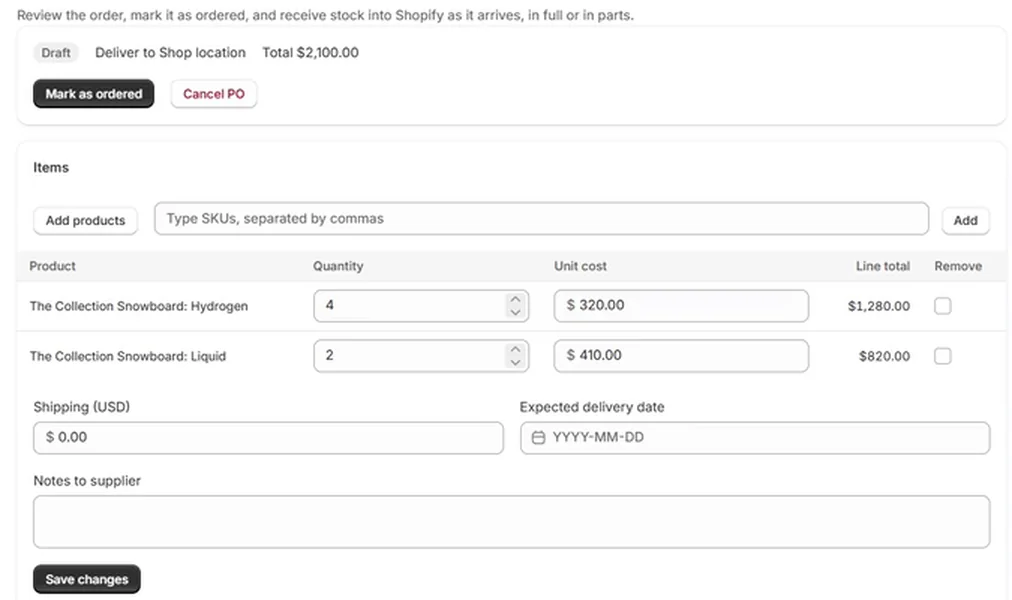
Choose Purchase orders and open the order. At the top of the order page, in the page actions, you will find Duplicate, Print / PDF, Export CSV and Email supplier. This guide uses the last three.
Step 2: Print it or save it as a PDF
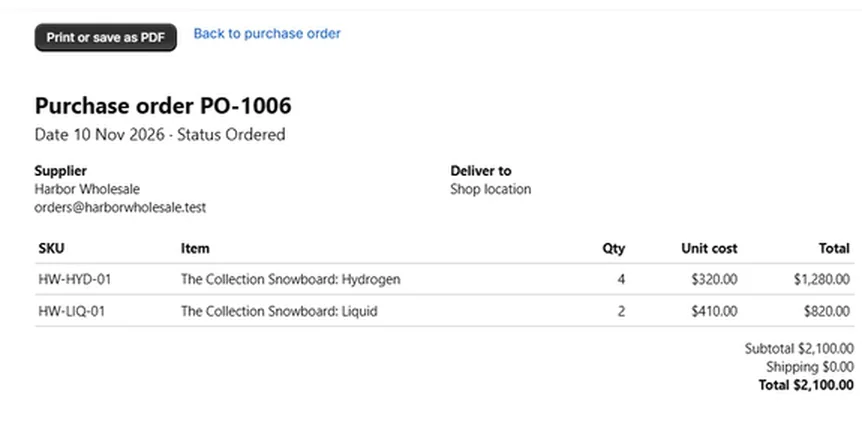
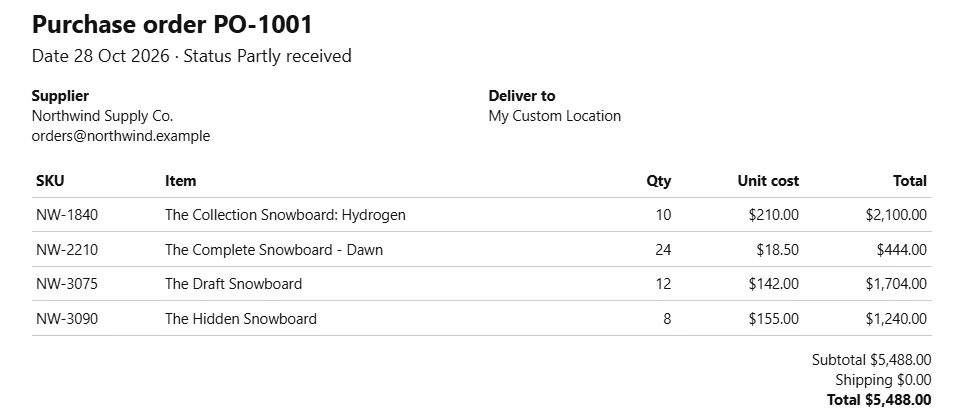
Choose Print / PDF. A clean page opens with the order number, the date and status, the supplier's name and email, where the goods are delivered, and a table of SKU, item, quantity, unit cost and total, with subtotal, shipping and total underneath.
Choose Print or save as PDF to open your browser's print dialog. Pick a printer, or pick the option that saves a PDF. Back to purchase order returns you to the order. The supplier's SKU leads each line, so the supplier can match it to their own list.
Step 3: Copy the email
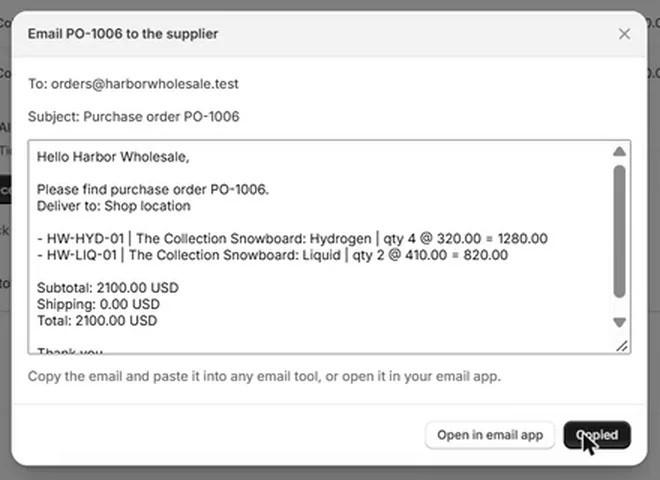
Choose Email supplier. A dialog titled Email PO-1006 to the supplier shows the To address, the subject and the full message. Choose Copy email, which becomes Copied, and paste it into any email tool. Open in email app opens the message in your device's default email program instead.
Reordo does not attach the PDF. If you want the PDF with the email, save it from the print page first and attach it yourself.
Step 4: Export a CSV if the supplier wants a file
Choose Export CSV to download the order as a file. It has one row per line with the PO number, supplier, your SKU, the supplier SKU, the title, quantity ordered, quantity received, unit cost, line total and currency. It opens in any spreadsheet and suits supplier portals that take uploads.
Step 5: Mark the order as ordered
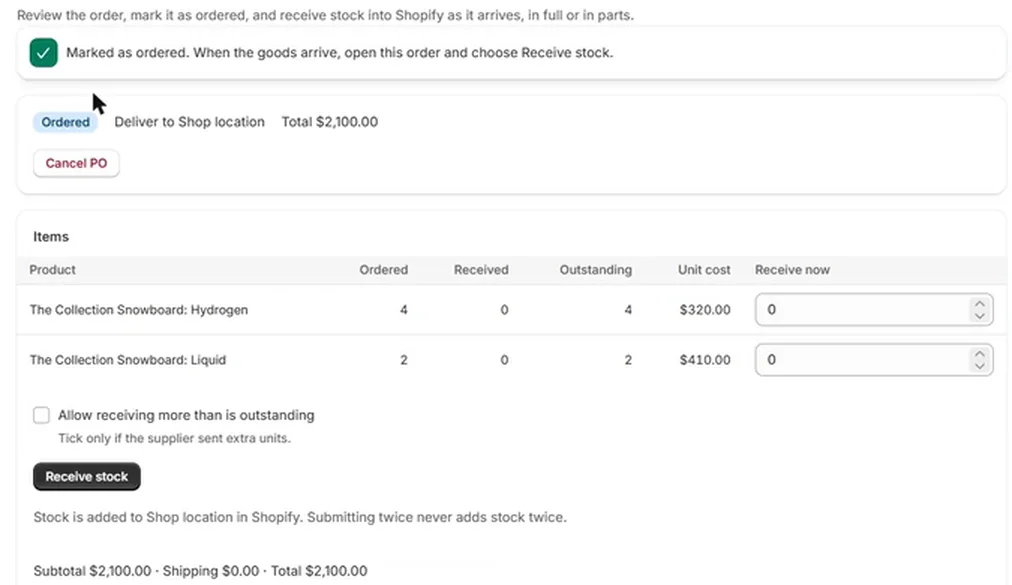
After you have sent it, return to the order and choose Mark as ordered. The order then waits for stock. The receiving guide covers what to do when the goods arrive.
Which one should I use?
Pick the format your supplier works with. Many shops use two of them together.
- Print / PDF when the supplier wants a document, or when you keep paper or PDF records of every order.
- Email supplier when the supplier takes orders by email. Paste the text into your email tool and attach the PDF if they want one.
- Export CSV when the supplier's portal accepts spreadsheet uploads, or when you want your own copy of the lines to work with.
A checklist before you send
- The supplier's email address is saved on the supplier page.
- The expected delivery date and the notes to supplier are filled in on the draft.
- Supplier SKUs are saved, so the supplier can match each line to their own list.
- Shipping is entered if the supplier charges for it, so the total is right.
- You have looked at the print page once. It is what the supplier will see.
Keeping a record
Reordo keeps every order and its status in the Purchase orders list, so you do not need to file copies by hand. The PDF you saved is a record of what the supplier was sent. The order page is the live record of what has arrived, and its Receipts table shows each delivery. Open both side by side when you check an invoice against a delivery.
If you need to change an order you already sent
Tell the supplier first. In Reordo, a draft can be edited, but an order marked as ordered is fixed. While it is still Ordered, choose Duplicate, correct the copy, and use Cancel PO on the original, then print or email the corrected order. Cancelling does not change stock in Shopify.
What the email says
The message is plain text so it pastes cleanly. It greets the supplier by name, gives the order number, and names the delivery location. It adds an expected date when you set one. Then it lists each line with the supplier's SKU, the item, the quantity and the cost, followed by the subtotal, shipping and total, and your notes if you wrote any.
Because the text is plain, you can edit it before you send it. Add your account number, delivery instructions or anything else your supplier expects.
Small habits that help
- Fill in Expected delivery date and Notes to supplier on the draft before you print or copy, so they appear in what you send.
- Save supplier SKUs on the supplier page. The supplier cost guide shows how.
- Keep the PDF with your records. It shows the order as it was when you sent it.
Troubleshooting
Open in email app does nothing
That button depends on your device having a default email program. Use Copy email and paste the message into your email tool.
The To line is empty
The supplier has no email address saved. Open the supplier, add the email and save. The dialog then shows it.
The PDF has extra text at the top and bottom
Your browser adds headers and footers by default. Switch off headers and footers in the print dialog's options.
The print page does not open
A pop-up or script blocker may be in the way. Allow pop-ups for your Shopify admin and try again.
The SKU on the print page is not the one I expected
The supplier's SKU leads each line when one is saved. Otherwise your own SKU is shown.
The expected delivery date is missing from the print page or the email
It appears only when an expected delivery date is set on the order. Add it while the order is still a draft, save the changes, and print or copy again.
Frequently asked questions
Does Reordo send the email for me?
No. It prepares the message for you to copy or to open in your own email app.
Can I attach the PDF automatically?
No. Save the PDF from the print page and attach it to your email.
Can I add my logo to the printed order?
The print page has a fixed layout. There is no logo or template editor.
Is printing included in the Free plan?
Yes. Printing, CSV export, suppliers and receiving are all part of the Free plan.
Can I send the same order again?
Yes. Open the order and choose Print / PDF or Email supplier whenever you like.